
How Pages Look When Shared
When a URL is pasted into social media or chat (Facebook, X, LINE, Slack, and so on), a preview card is built from information written in the page. The card information is fetched the first time the URL is shared and cached for several days. Set it correctly at launch or update, and the intended card with current information is what spreads.
Code examples are collapsed. The text is written so that you can decide without opening them.
Card Information (OGP)
OGP (Open Graph Protocol) is the common way to specify a card's title, description, image, and so on.
| Property | Role on the card | What to write |
|---|---|---|
og:title | Title | Based on <title>; the trailing site name may be dropped |
og:description | Description | A summary of the page; usually the same as meta description |
og:image | Image | An image URL starting with https:// |
og:url | Page URL | The canonical URL (same value as <link rel="canonical">) |
og:type | Page type | website for the home page and similar, article for dated articles |
- Set
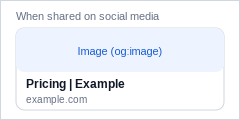
og:title,og:image,og:url, andog:typeMUSTPQ-R44 - With all four in place, the card appears correctly with its image.
og:imageis not recognized as a relative path, so write a URL starting withhttps://. - Check:
DOC-08DOC-08Open Graph tags✕ NGJust a bare URL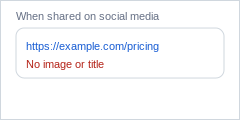 ✓ OKA card with image and title
- Set
og:descriptionSHOULDPQ-R45 - Summarize the page in roughly 120–160 characters.
- Check:
- Drop the trailing site name from
og:titleMAYPQ-R46 - The card also shows the domain, so a shorter title is fine.
Code example: OGP
<meta property="og:title" content="Spring 2026 Product Update" />
<meta property="og:description" content="An overview of the new features in this update and the improvements to page speed." />
<meta property="og:image" content="https://example.com/assets/og/spring-update.jpg" />
<meta property="og:url" content="https://example.com/news/2026/spring-update" />
<meta property="og:type" content="article" />
X Cards
Without its own settings, X falls back to OGP but shows a small square-image card (summary). For a large-image card, set the following.
- Set
twitter:cardMUSTPQ-R47 - Use
summary_large_imagefor pages with an image andsummaryfor pages without one. - Set
twitter:imageSHOULDPQ-R48 - Specify it explicitly instead of relying on
og:image. You can also provide an image sized for X's card ratio. - Set
twitter:titleandtwitter:descriptionMAYPQ-R49 - When omitted,
og:titleandog:descriptionare used.
Code example: X card
<meta name="twitter:card" content="summary_large_image" />
<meta name="twitter:image" content="https://example.com/assets/og/spring-update.jpg" />
The Card Image (og:image)
- Make the image 1200×630px (aspect ratio 1.91:1) MUSTPQ-R50
- This ratio displays uncropped on Facebook, X, LINE, and others. Never go below 200×200px.
- Host the image where it opens directly, without login or access restrictions MUSTPQ-R51
- Social media crawlers send no cookies or passwords. Use a URL that opens without a chain of redirects.
- Do not use SVG for the image MUST NOTPQ-R52
- Use JPEG or PNG. Almost every social media platform supports them, so the image appears everywhere.
- Keep the file under 1 MB SHOULDPQ-R53
- Lighter files let social media fetch them in time, so the card appears reliably. Aim for 300–500 KB or less.
Checking the Preview After Launch
After launch, check the preview with each service's tool. You catch syntax mistakes and stale caches before users see them.
| Service | How to check |
|---|---|
| Enter the URL in the Sharing Debugger, press "Scrape Again" to refresh the cache, and look at the card | |
| Enter the URL in the Post Inspector and look at the card | |
| X | Paste the URL into a draft post on a test account and confirm the large-image card appears |