
Web Production Quality Guidelines
The accessibility and page quality standards for the websites we build. They set out the rules to follow in each phase, from information architecture to operations, and the checklists that verify them. The aim is sites that everyone can use, built to the same quality whatever the project or the person in charge.
Why We Set These Standards
We make it a premise of all our work that everyone can get the information the same way, whatever their environment. So we build accessibility and page quality checks into every production phase.
 A site that everyone can use the same way
- We make sites that everyone, including people with disabilities and older people, can get information from and operate.
 Correct structure delivers the content
- With correct structure, the same content reaches people looking at the screen and people reading through assistive technologies or search engines.
 Check in each phase to keep rework small
- Checking the manuscript, the design, and the implementation each in turn leaves fewer fixes before release.
What the Guidelines Cover
The Web Production Quality Guidelines are made of two angles: Accessibility and Page Quality. Checking both whether everyone can use the site and whether the page is built correctly catches problems that either one alone would miss.

- Accessibility
- Following WCAG 2.2, everyone can get the information and operate the site.
- RelatedAccessible names
- Page Quality
- In-house standards for HTML structure, metadata, images, loading speed, and more.
- RelatedChoosing elementsHow pages look when shared
Implementation references (managed apart from the guidelines)CodingCustom UI
Work by Phase
The Accessibility checklist groups its items by phase.
Production
- Information architecture
IA - Decide the heading structure, image alt text, link and button wording, and page titles in the manuscript.
- Design
DS - Decide how states are shown without relying on color alone, text contrast, focus indicators, the layout when zoomed, and names for icon-only buttons.
- Implementation
DEV - Build elements, names, reading order, and keyboard operation as the manuscript and design specify.
Review QA
Operate the pre-release pages or the live site in a browser and judge them with the Accessibility QA items and the Page Quality items.
- Keyboard-only operation
- Screen reader output
- Zoom and text size
- Color and contrast
- Form input and errors
- Video, audio, and motion
- Structure and metadata
- Images and loading speed
Release
Operations OPS
Put update procedures and the items to check into the operations manual, and audit regularly.
Reading a Rule
- Requirement level
- How strictly it applies, such as MUST or SHOULD
- Point
- What to do, in one sentence
- Details and reason
- How to do it, and why it is needed
- Check
- The checklist items that verify it, with their figures
- Make every function usable with the keyboard alone MUSTA11Y-R01
- Every link and button can be reached with
Taband pressed withEnterorSpace, and dialogs close withEsc. Some people cannot use a mouse. - Check:
QA-01QA-01Reachable by Tab✕ NGA div-based button is skipped by Tab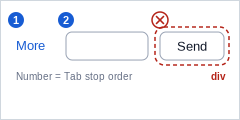 ✓ OKEvery control is reachable by Tab
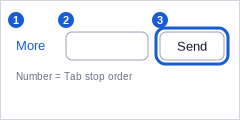
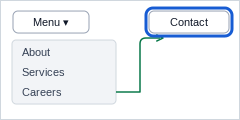
QA-05QA-05No keyboard trap✕ NGInside the open menu, Tab cannot get out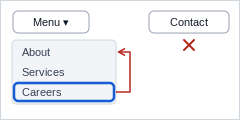 Tab keeps cycling inside the menu✓ OKTab moves on; Esc closes the menu
The requirement levels mean what RFC 2119 says.
| Level | Meaning | When it cannot be met |
|---|---|---|
| MUST Required | Met on every project | Treated only as an exception agreed with the client (Exception (agreed) in the record sheet) |
| MUST NOT Prohibited | Never done on any project | Same as MUST |
| SHOULD Recommended | Recommended | May be left unmet for a valid reason; weigh the reason and its impact, and record the decision |
| MAY Optional | Adopted or not according to the project's requirements | — |
Checking and Recording
- Know the itemsChecklists
- The list of items to check, each with its requirement level, how to check it, and reference figures.
- ChecklistsPage QualityAccessibility
- JudgeCheck Sheet
- Choose the scope, kind of review, conformance level, and target pages, and only the items to check are listed. Mark each item Pass, Fail, Not applicable, or Exception, and add findings and evidence images. Records are saved in the browser, so you can pick up where you left off.
- Keep the recordRecord sheet (Excel)
- Exported from the check sheet. The result (fix required, needs a decision, or done) and the breakdown are totaled automatically, for the project record and reports to the client.
ProceduresReview toolsAI-assisted review